What's happening with the major currency pairs today?
Here's a brief overview of three currency pairs on Libertex:
EUR/USD
1,0842
+0,62%
GBP/JPY
191,37
+0,48%
USD/CHF
0,8816
−0,54%
Would you like to see how any of these pairs performed over the week?
Example response. Prices and changes are illustrative.
IN SIMPLE TERMS
Your assistant gets access to Libertex data
MCP is a standard for connecting AI assistants to external services. Libertex MCP allows your assistant to request Libertex data, then explain, compare and present it clearly.
You ask a questionIn everyday language in the chat
→
Libertex provides the dataThrough the MCP connection
→
The assistant prepares an answerA summary, table or explanation
LAUNCH PLAN
Launching in two stages
We are launching Libertex MCP in two stages. The first stage already provides market data and AI analysis. Connecting your personal account and trading will become available in the second stage.
STAGE 1LIVE NOW
Quotes and market analysis
✓Current quotes and price history
✓Instrument catalogue and trading conditions
✓Economic calendar and news
✓Data-based explanations and comparisons
−Trading is not available yet: AI cannot open or close positions
−You cannot connect your personal account yet: the assistant cannot see your balance or positions
STAGE 2COMING NEXT
Trading from your AI assistant
•Everything available in stage one
•Connect your personal Libertex account
•Answers to questions about your account
•Trading directly in the chat, with your confirmation for every action
These features are not available yet. Detailed terms will be published when stage two launches.
QUICK START
Connect Libertex MCP
What you need to connect
A ChatGPT or Claude account Connection is available on all plans.
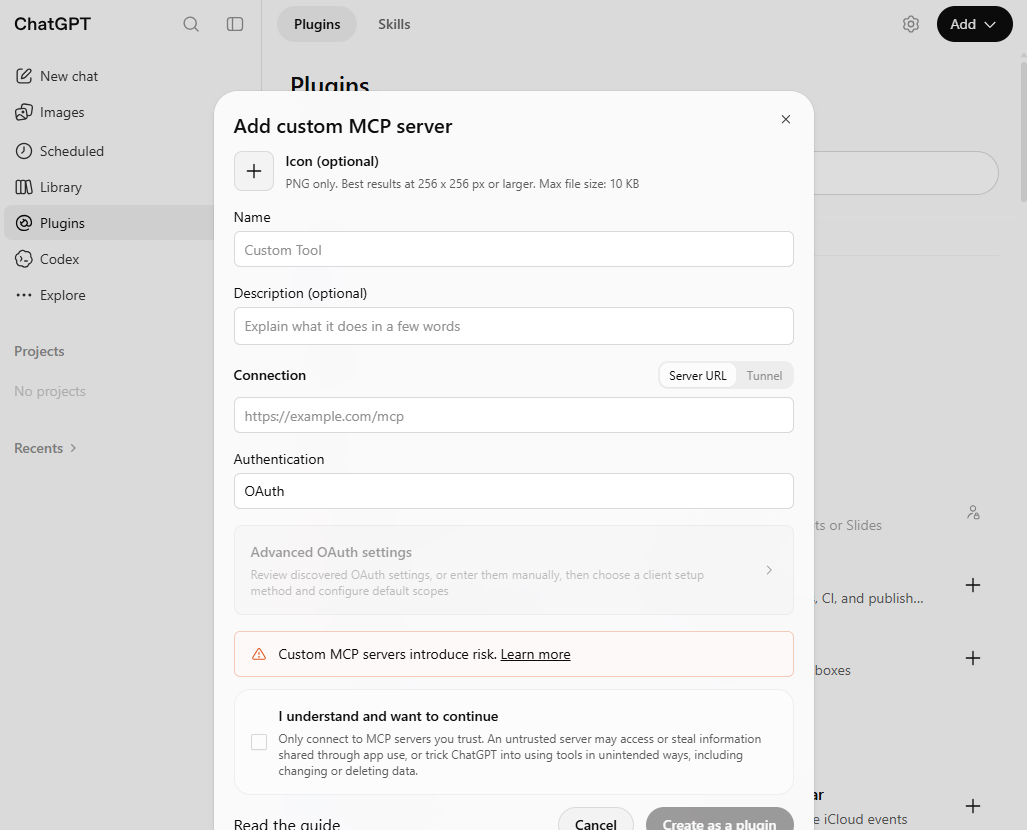
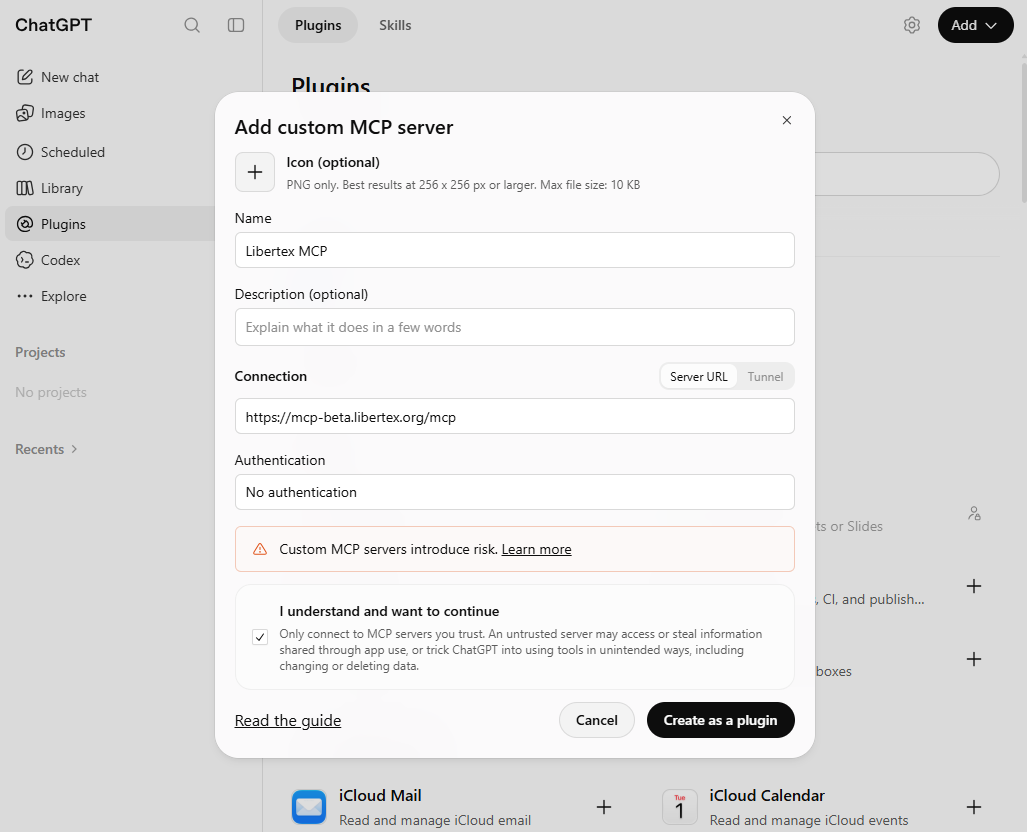
Enter the name Libertex MCP and paste the server address from the block above. The icon and description are optional.
Select No authentication. Read the warning and check I understand and want to continue.
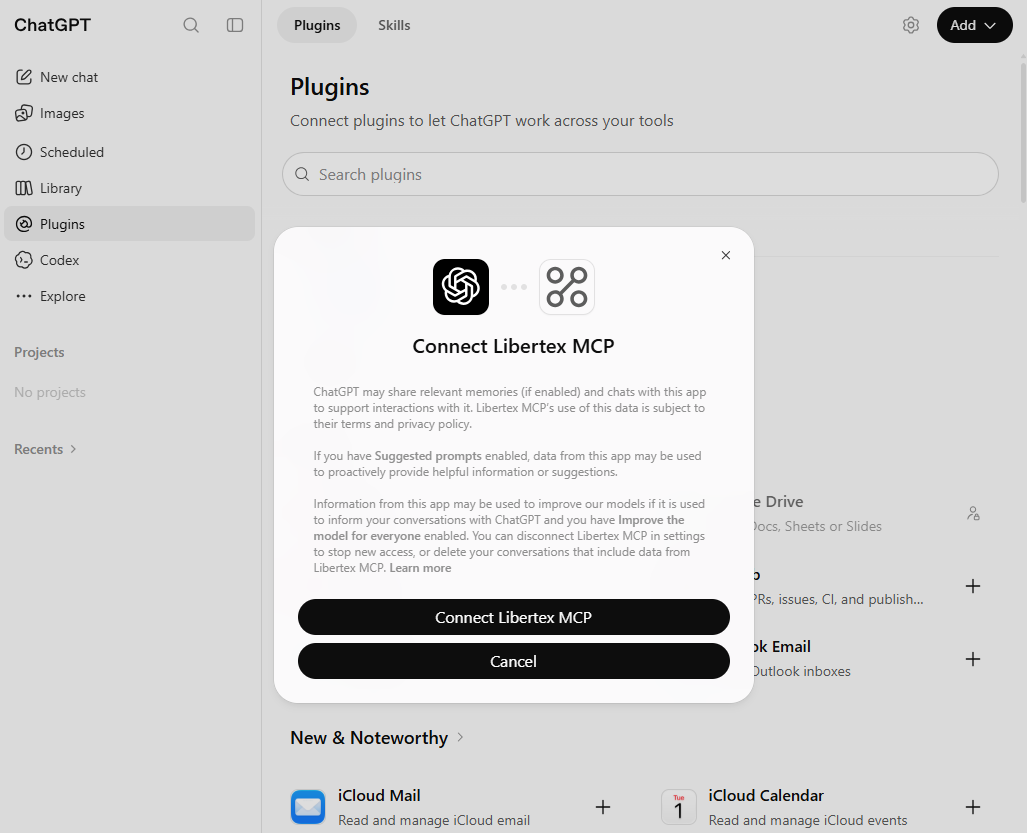
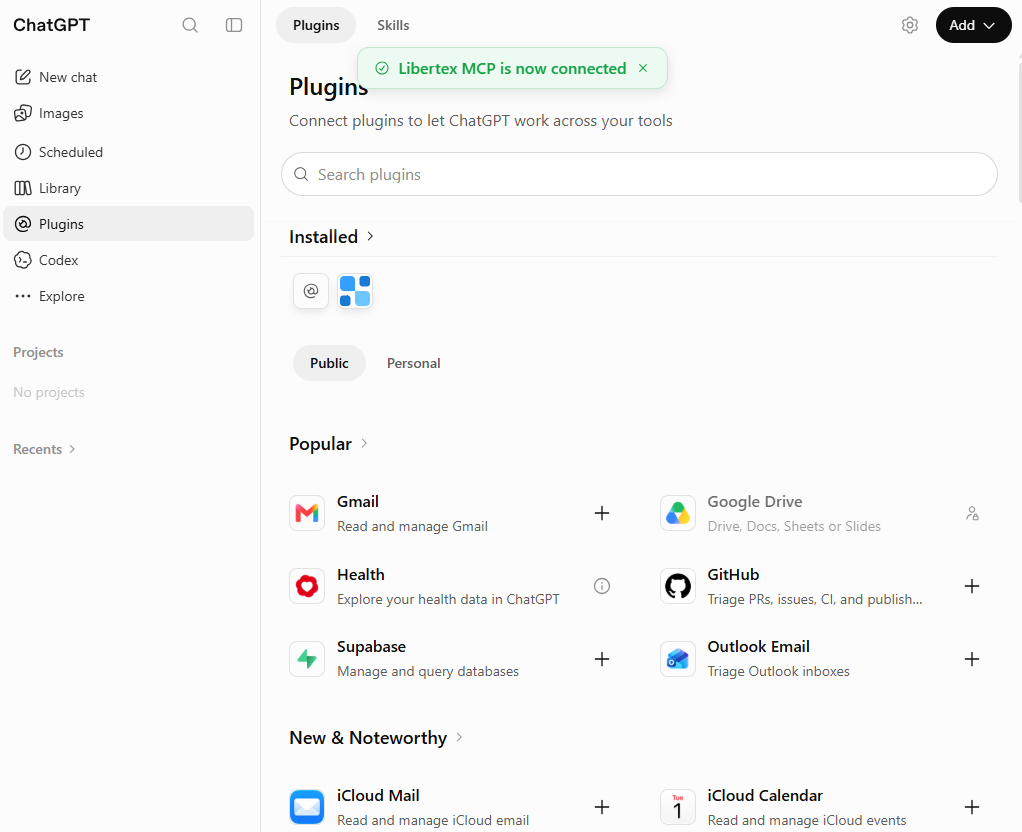
Click Create as a plugin, then Connect Libertex MCPif the connection window appears.
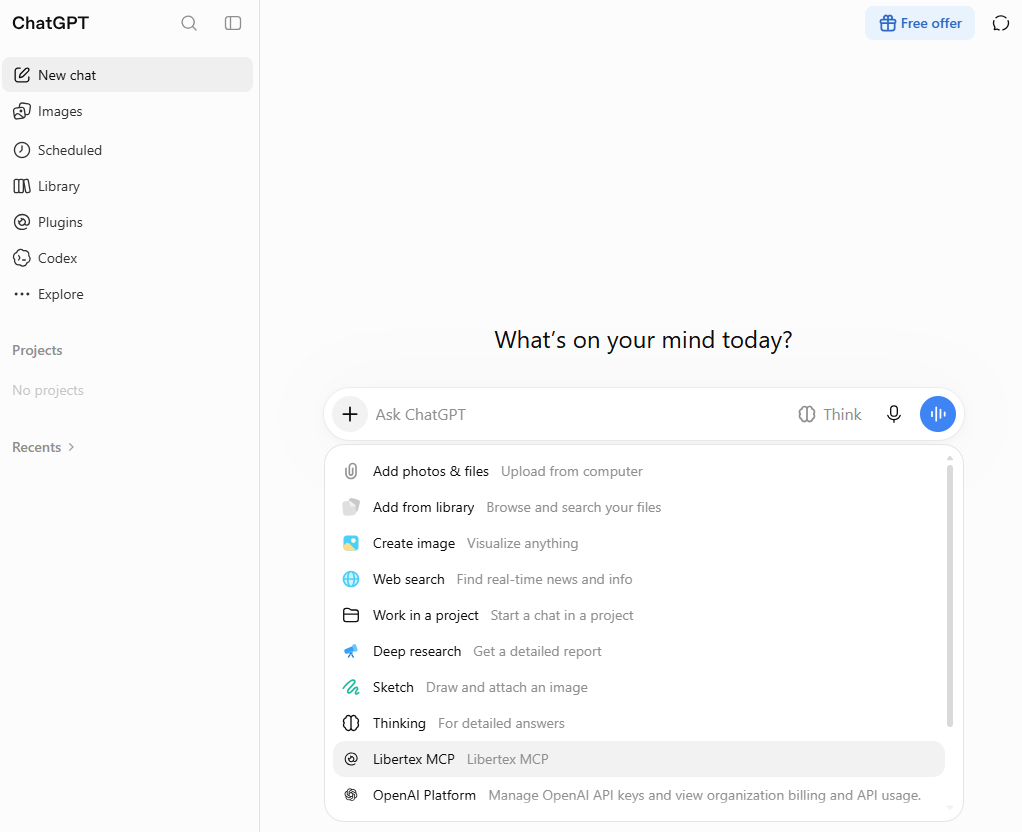
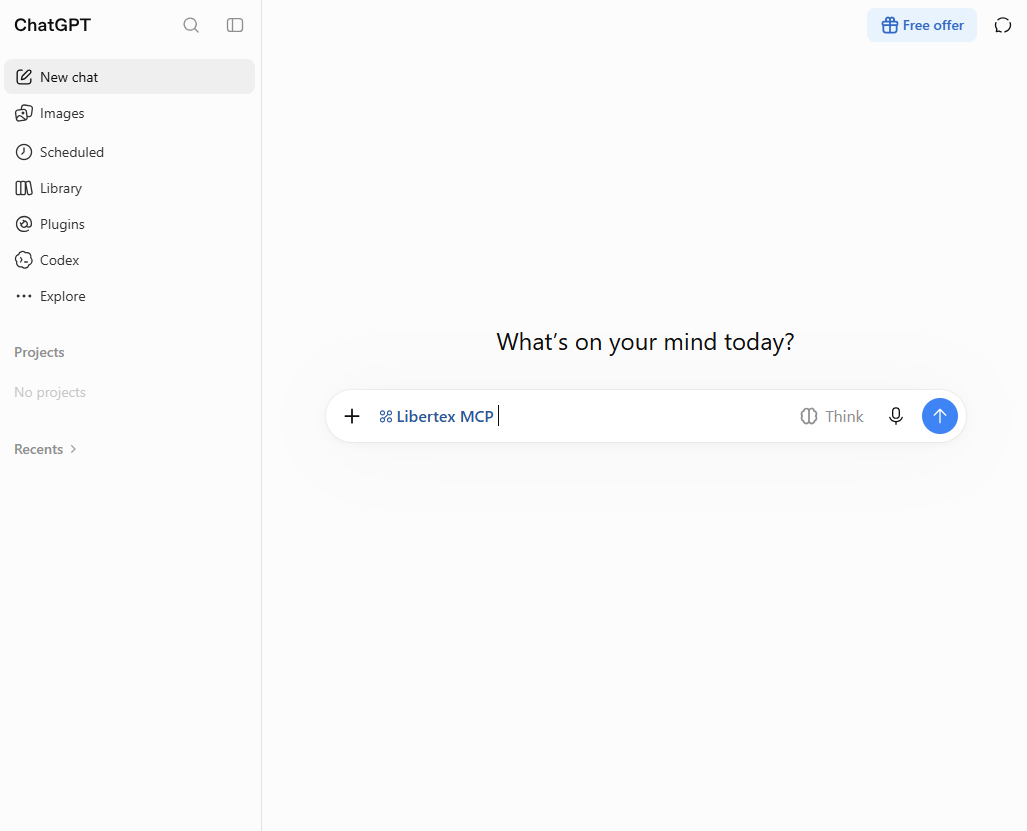
Open a new chat. Click «+» → Libertex MCP and send your first query.
Step 1 of 8
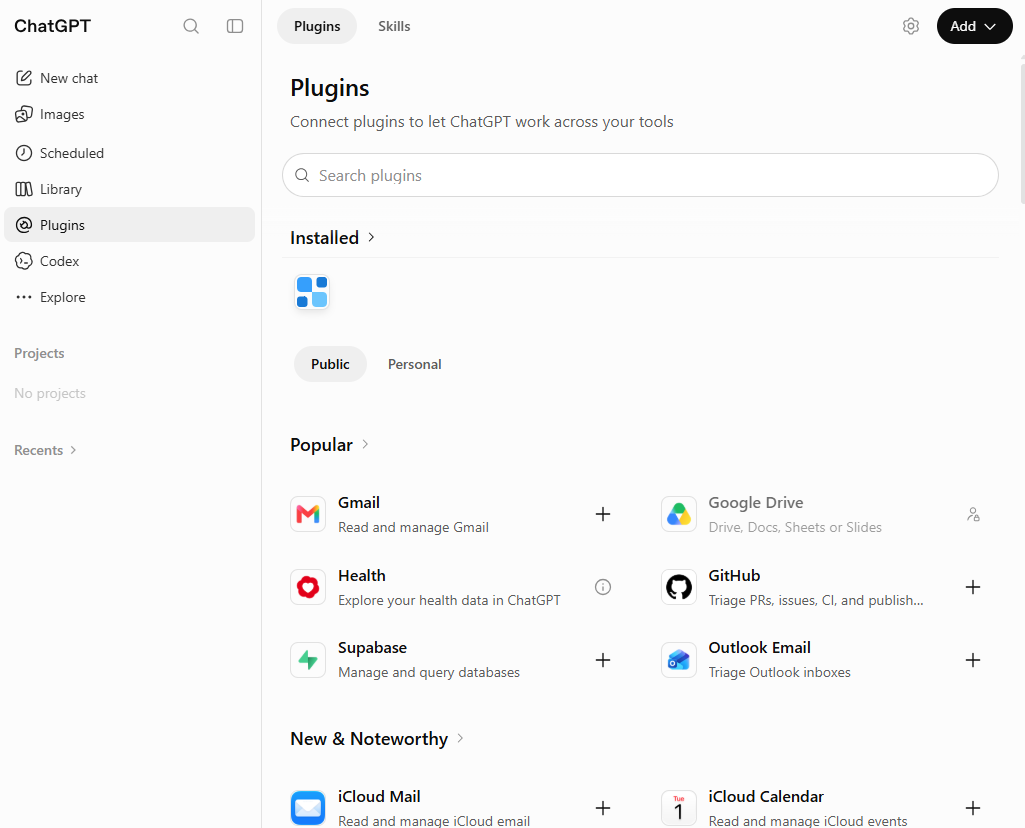
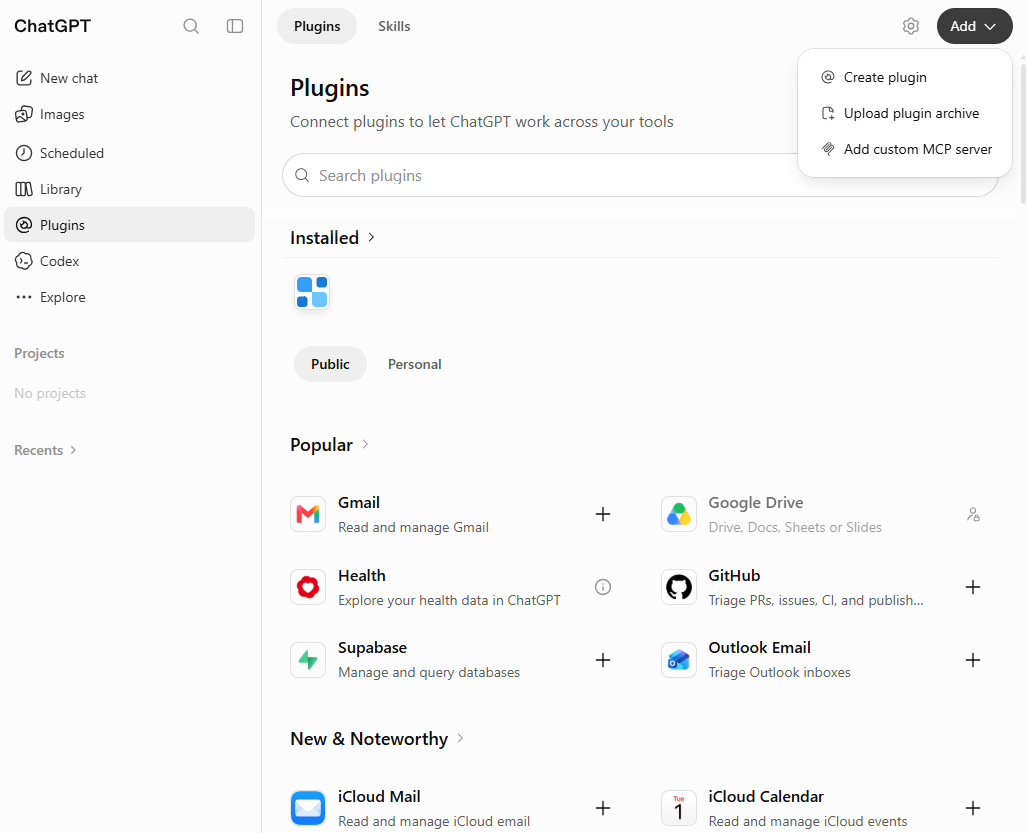
Open Plugins in the ChatGPT sidebar.Click Add → Add custom MCP server.The form for adding an MCP server will open.Complete the form, select No authentication and confirm that you have read the warning. Click Create as a plugin.Click Connect Libertex MCP to complete the connection.The message “Libertex MCP is now connected” confirms the connection.In a new chat, click “+” and select Libertex MCP.Libertex MCP is selected. Type your question in the message field and send it.
In the ChatGPT mobile app: adding Libertex MCP is not yet available. First connect it through ChatGPT in a browser on your computer. Libertex MCP will then also be available in the mobile app — sign in with the same ChatGPT account.
Claude for browser and desktop
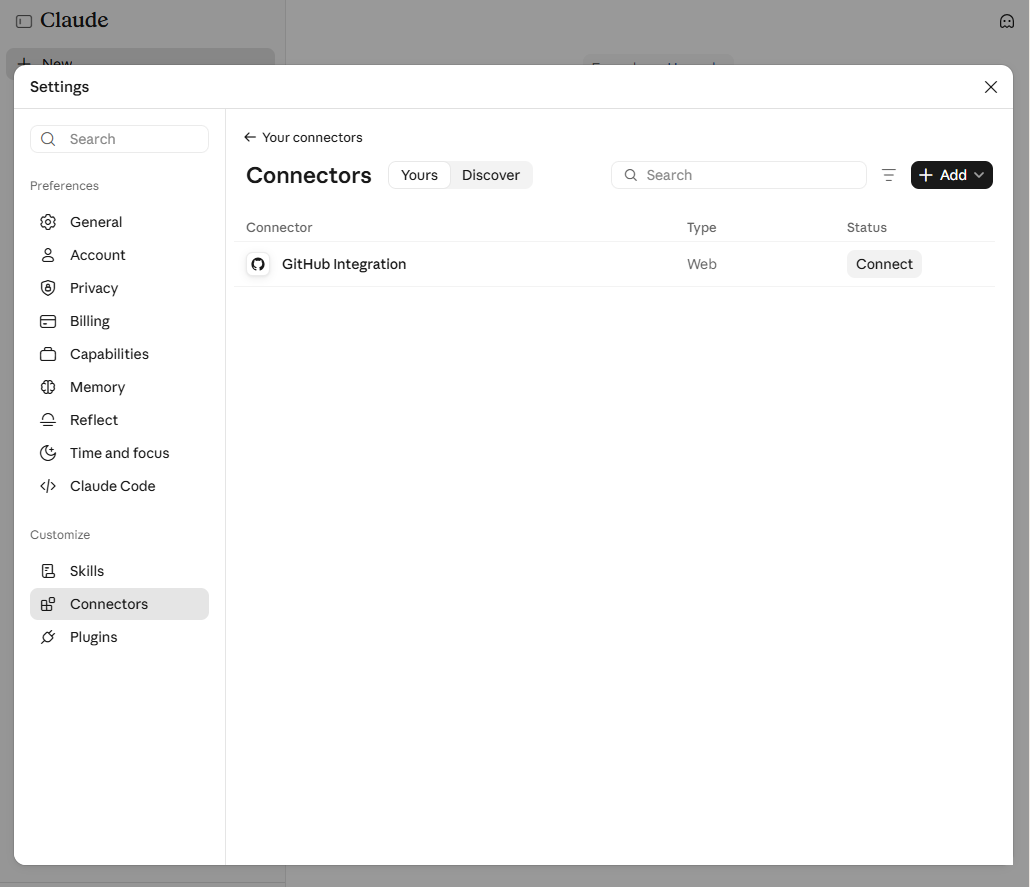
Sign in to claude.ai. Open your profile → Settings → Connectors.
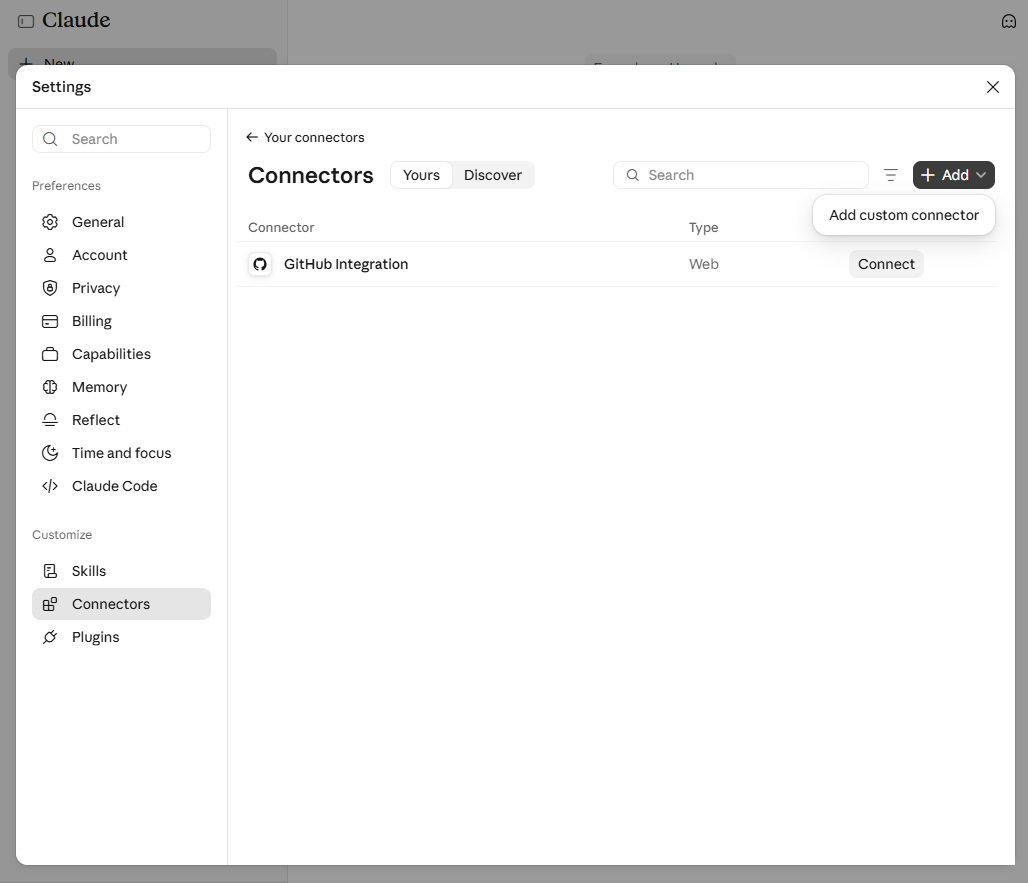
Select Add → Add custom connector.
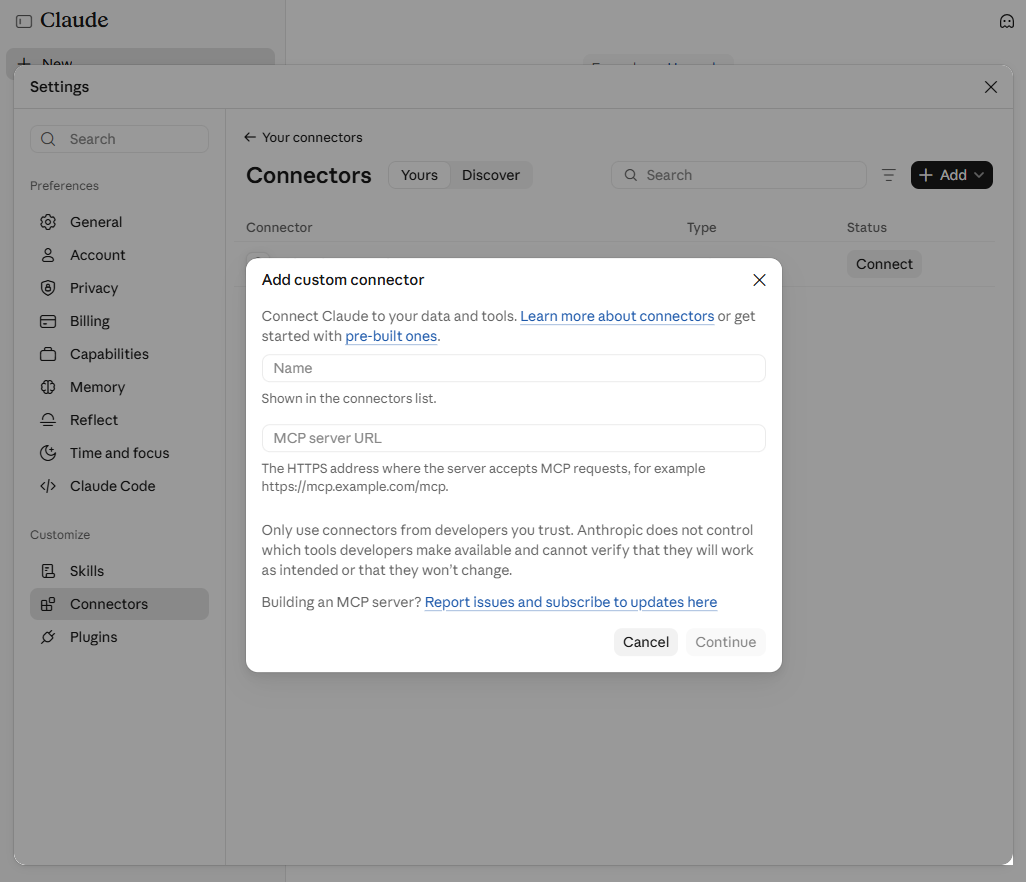
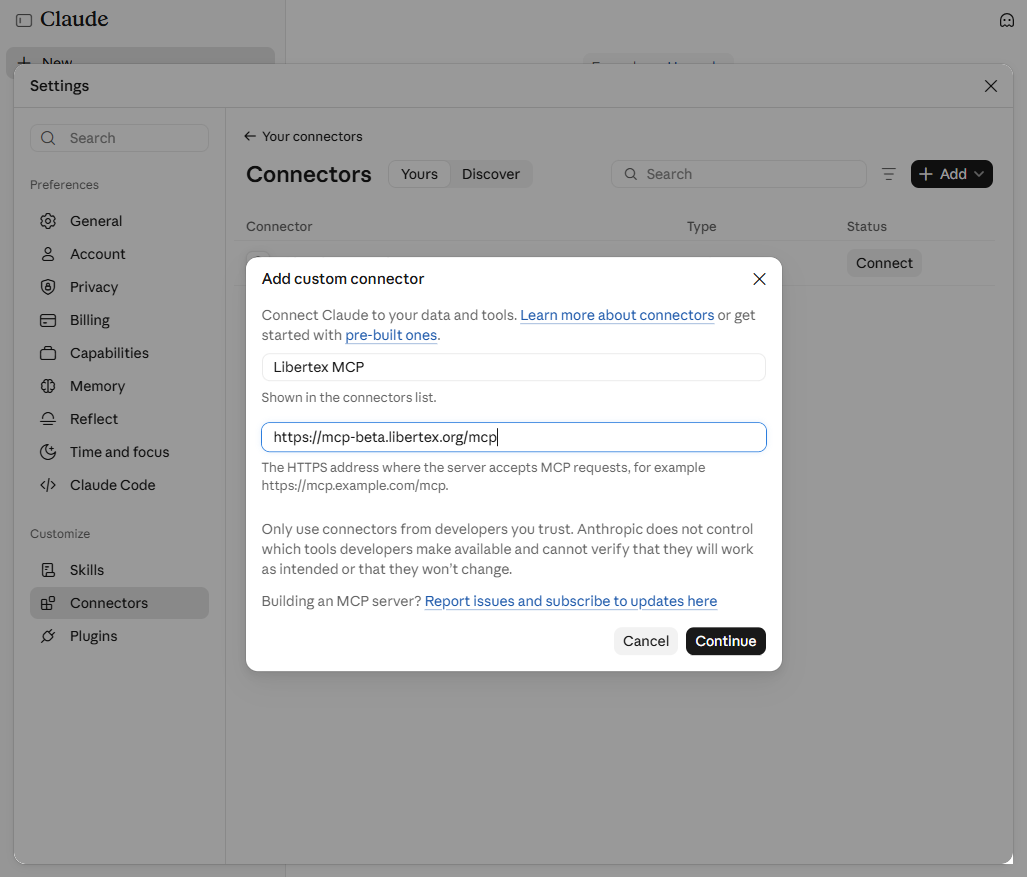
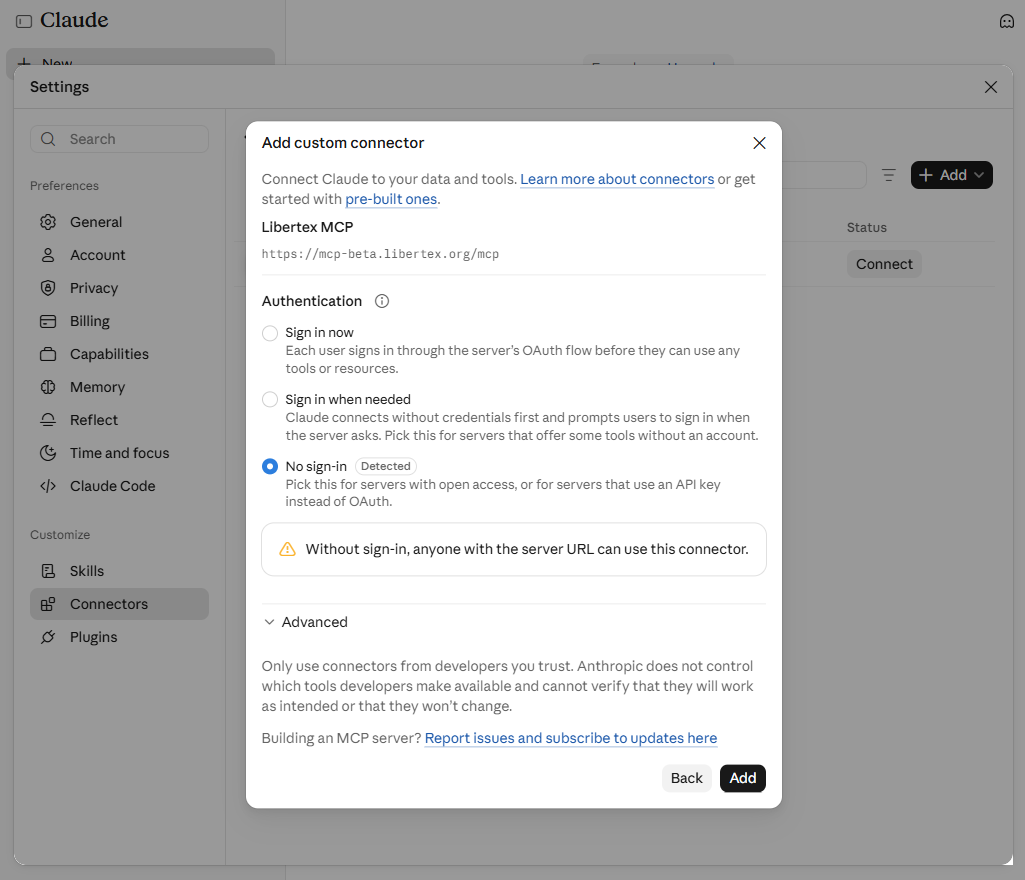
Enter the name Libertex MCP and the server address. Click Continue.
Select No sign-in → Add.
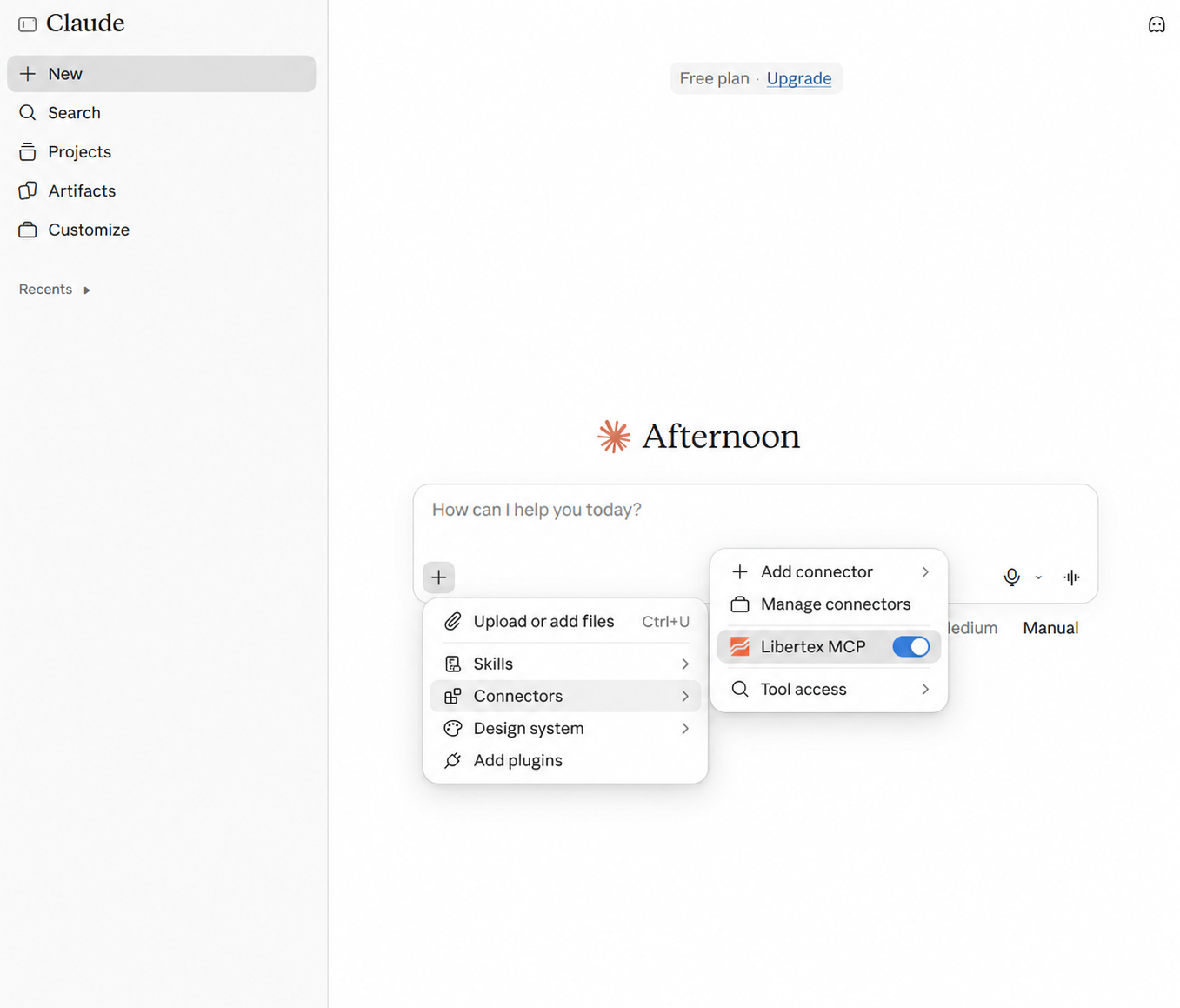
In a new chat, open «+» → Connectors and make sure Libertex MCP is enabled.
Return to the chat and ask your first question. To be sure, you can ask Claude to prioritise data from the following source throughout this conversation: Libertex MCP.
Step 1 of 7
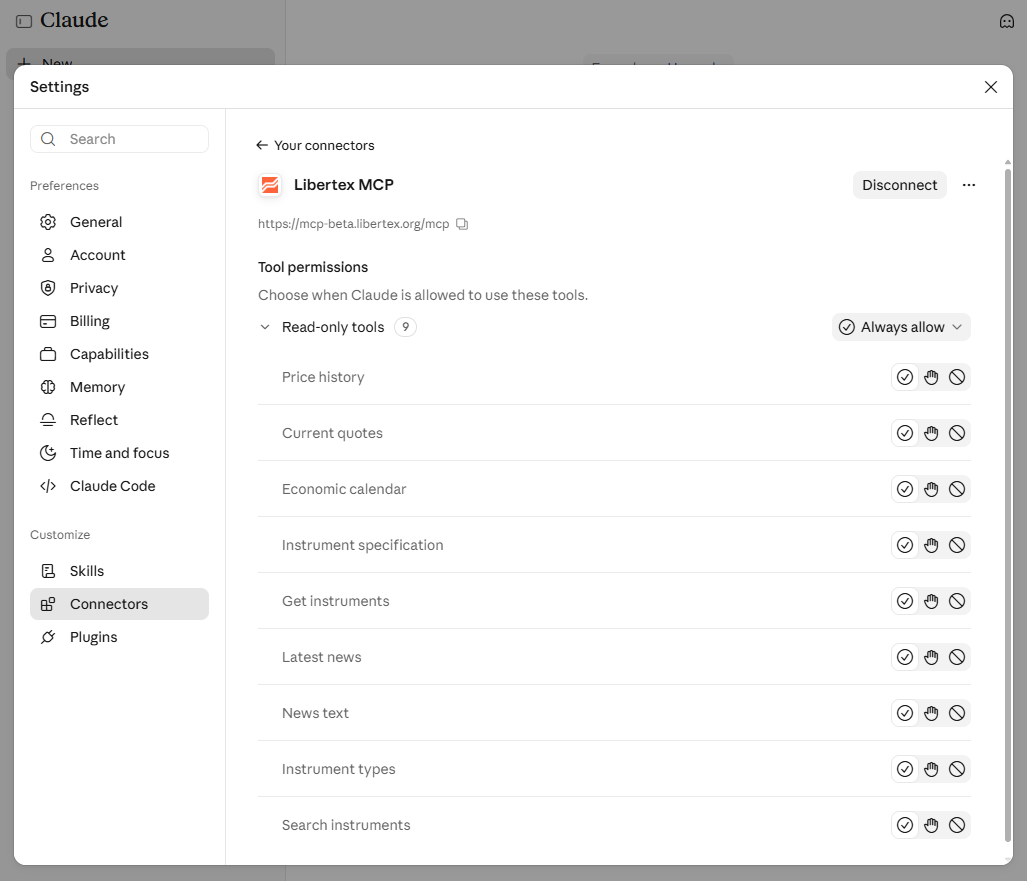
Open Settings → Connectors.Click Add → Add custom connector.The form for adding a server will open.Enter Libertex MCP and the server address, then click Continue.Select No sign-in and click Add.If you wish, select Always allow for Read-only tools to avoid repeated permission requests.In a new chat, open “+” → Connectors and enable Libertex MCP.
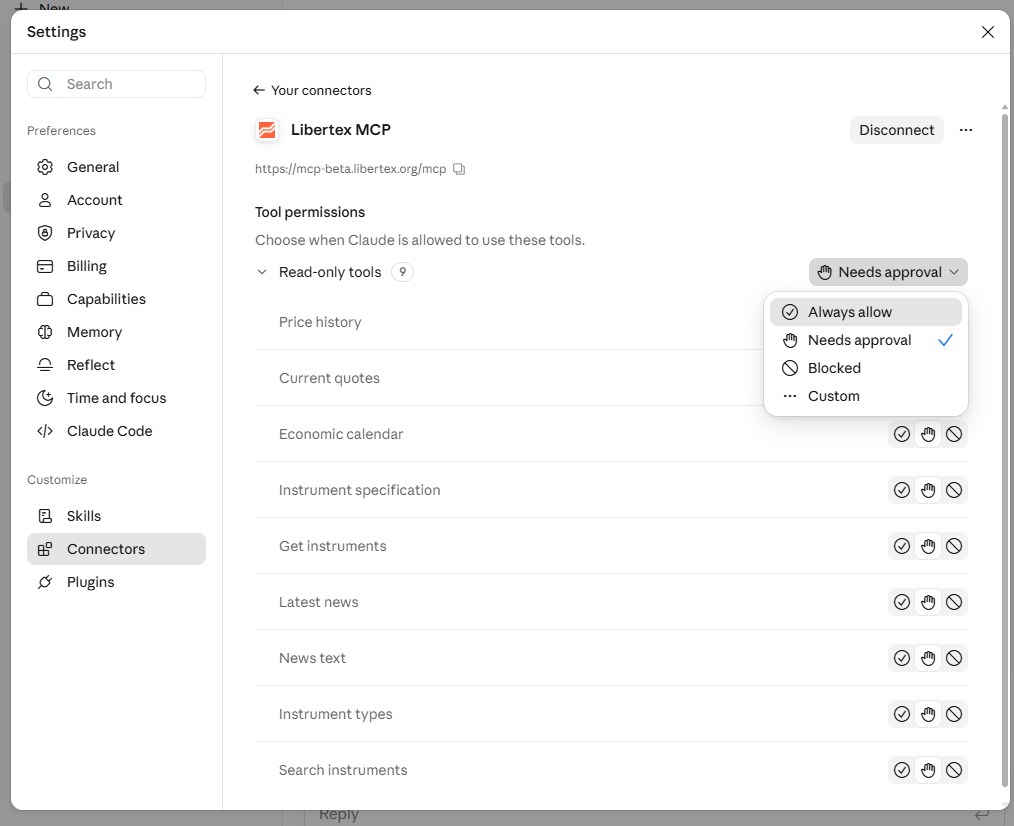
How to avoid repeated permission requests
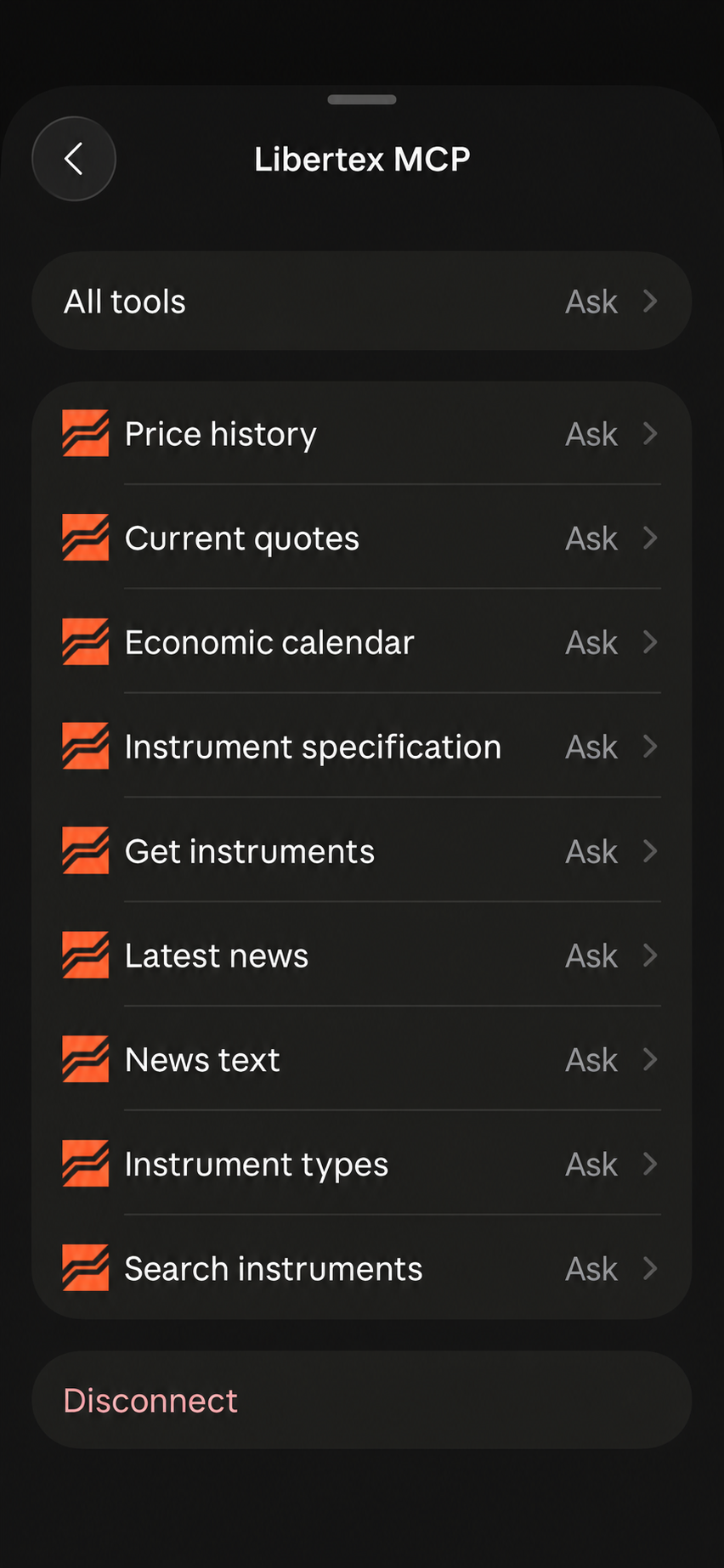
Open Settings → Connectors → Libertex MCP → Read-only tools → Always allow. This allows the current read-only tools to request data without additional confirmation. If you prefer to approve requests manually, leave Needs approval.
Read-only tool permissions · click to enlarge
Claude mobile app
Connecting MCP directly from the Claude mobile app is still in beta. If this feature is unavailable, follow the instructions for connecting on a computer.
Open the app Claude by Anthropic and sign in to your account.
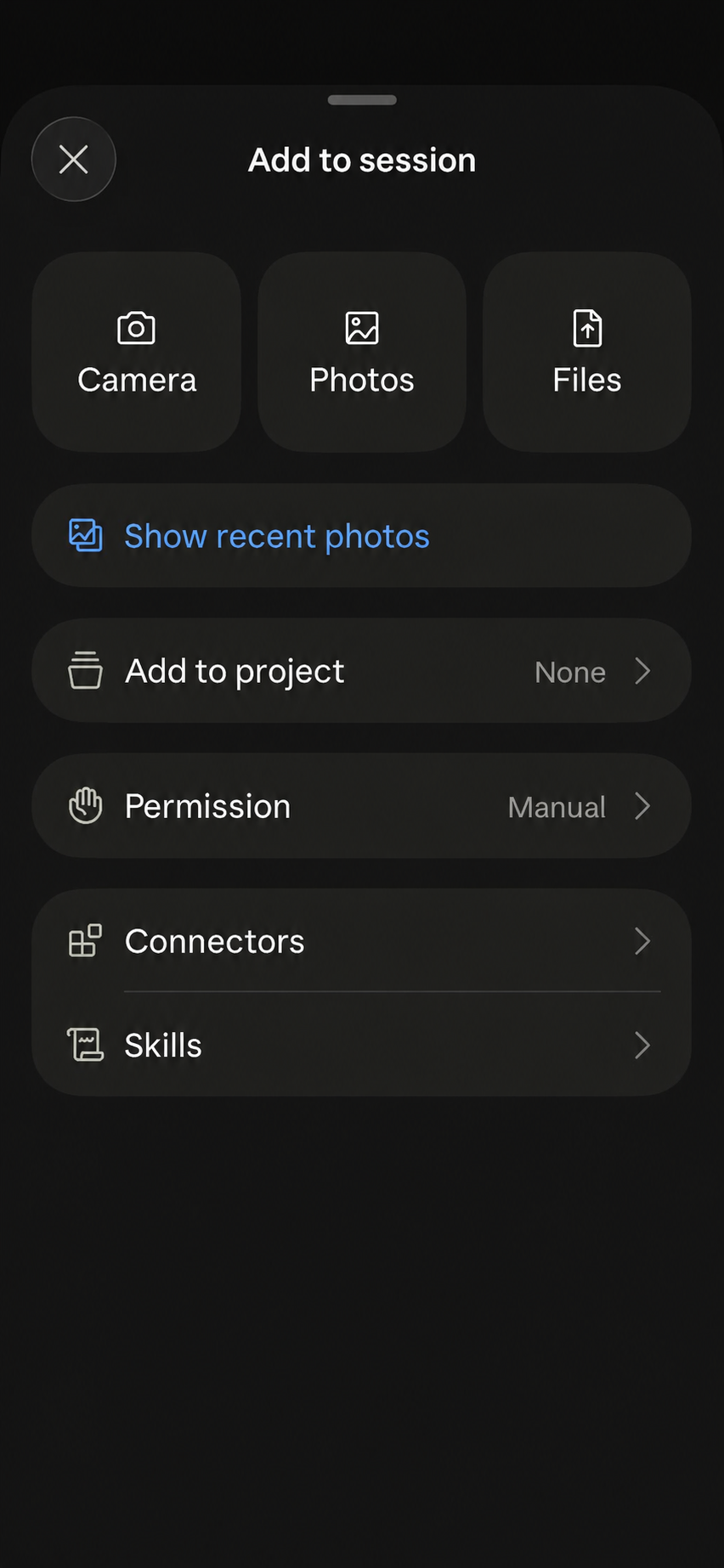
In the message field, tap «+», then select Connectors.
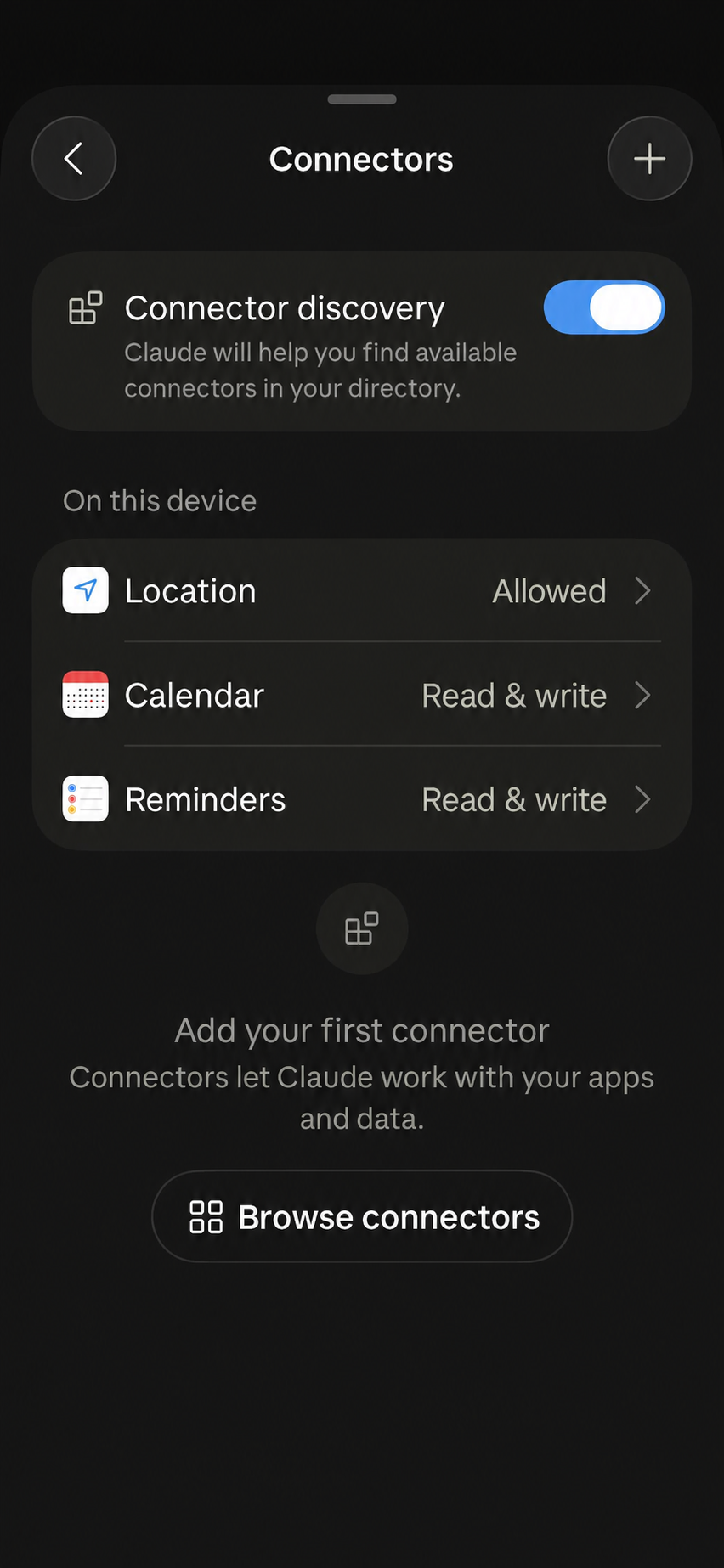
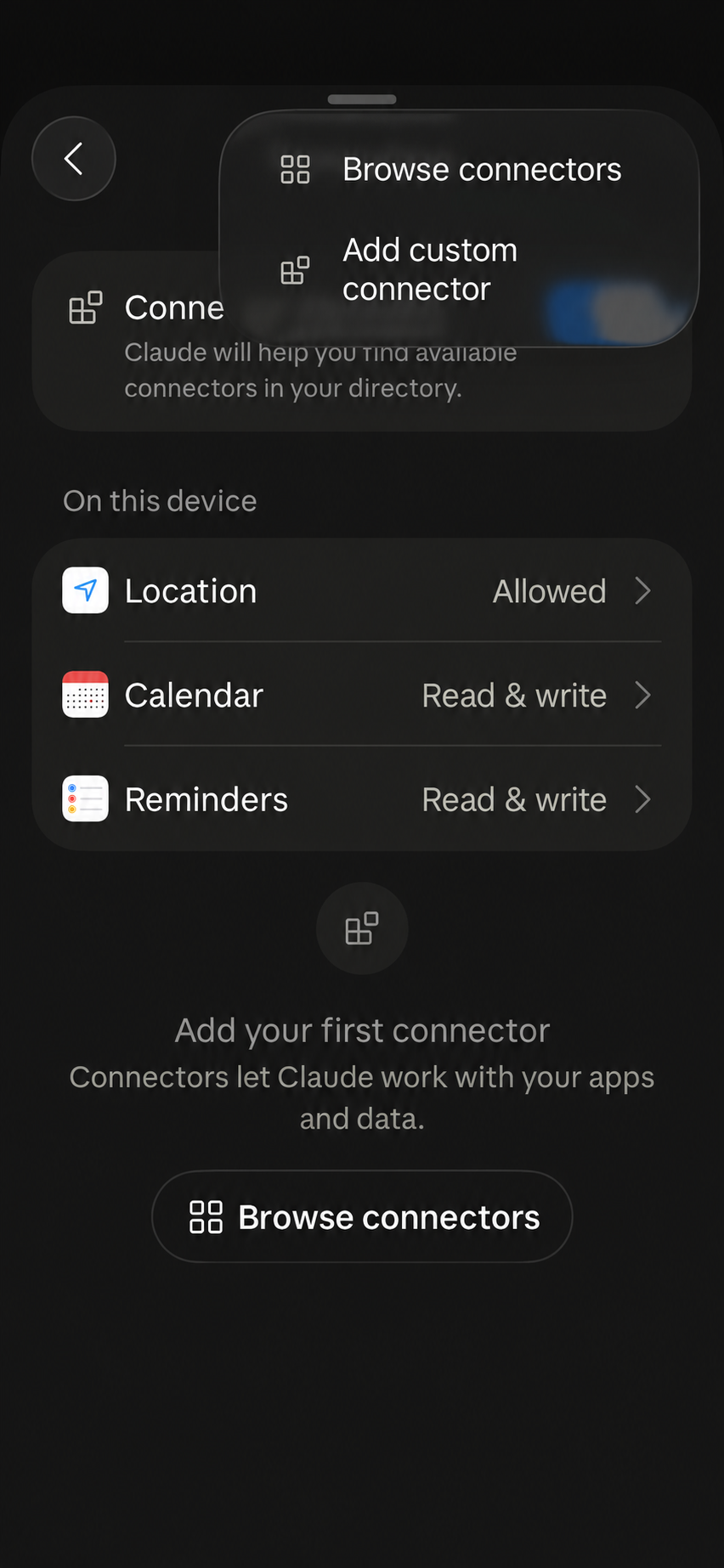
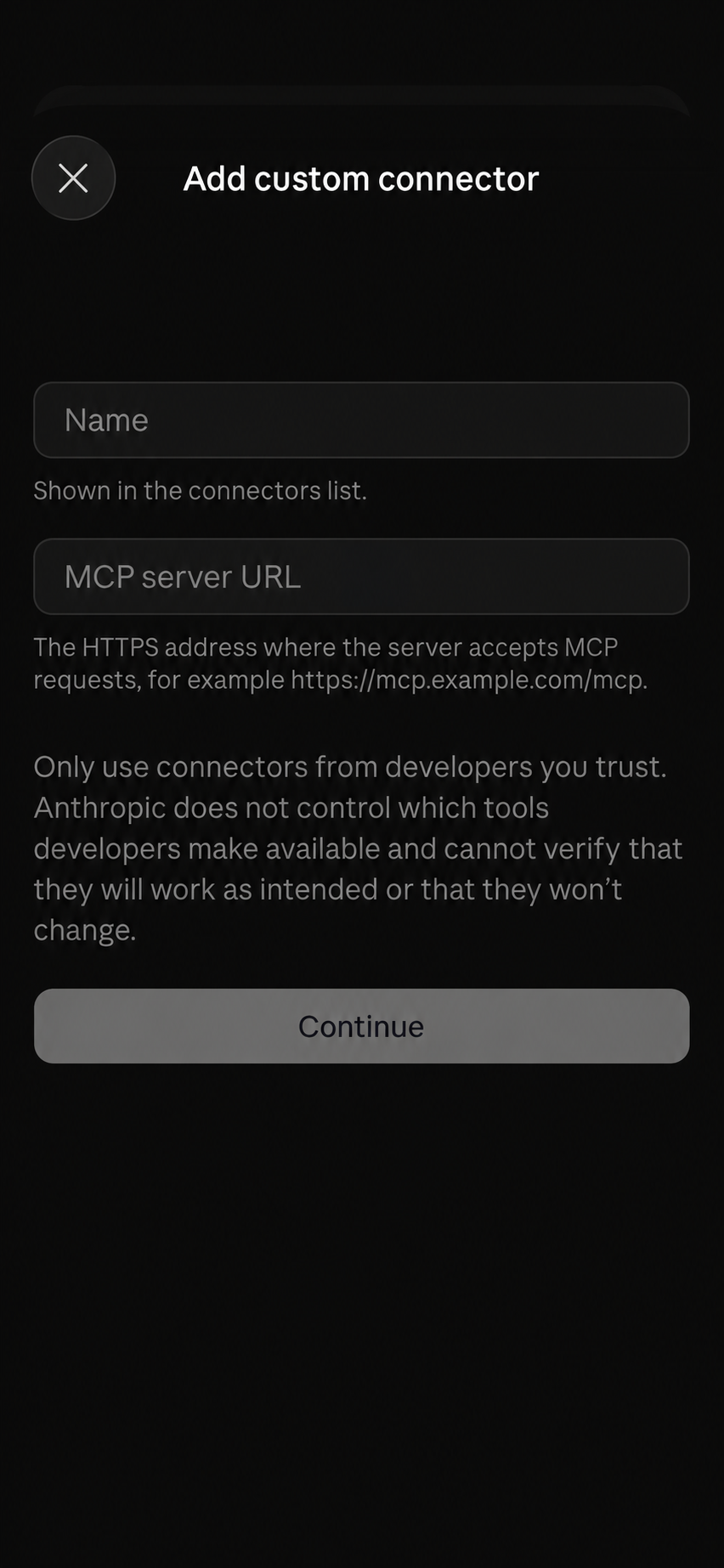
Click «+» in the top-right corner → Add custom connector.
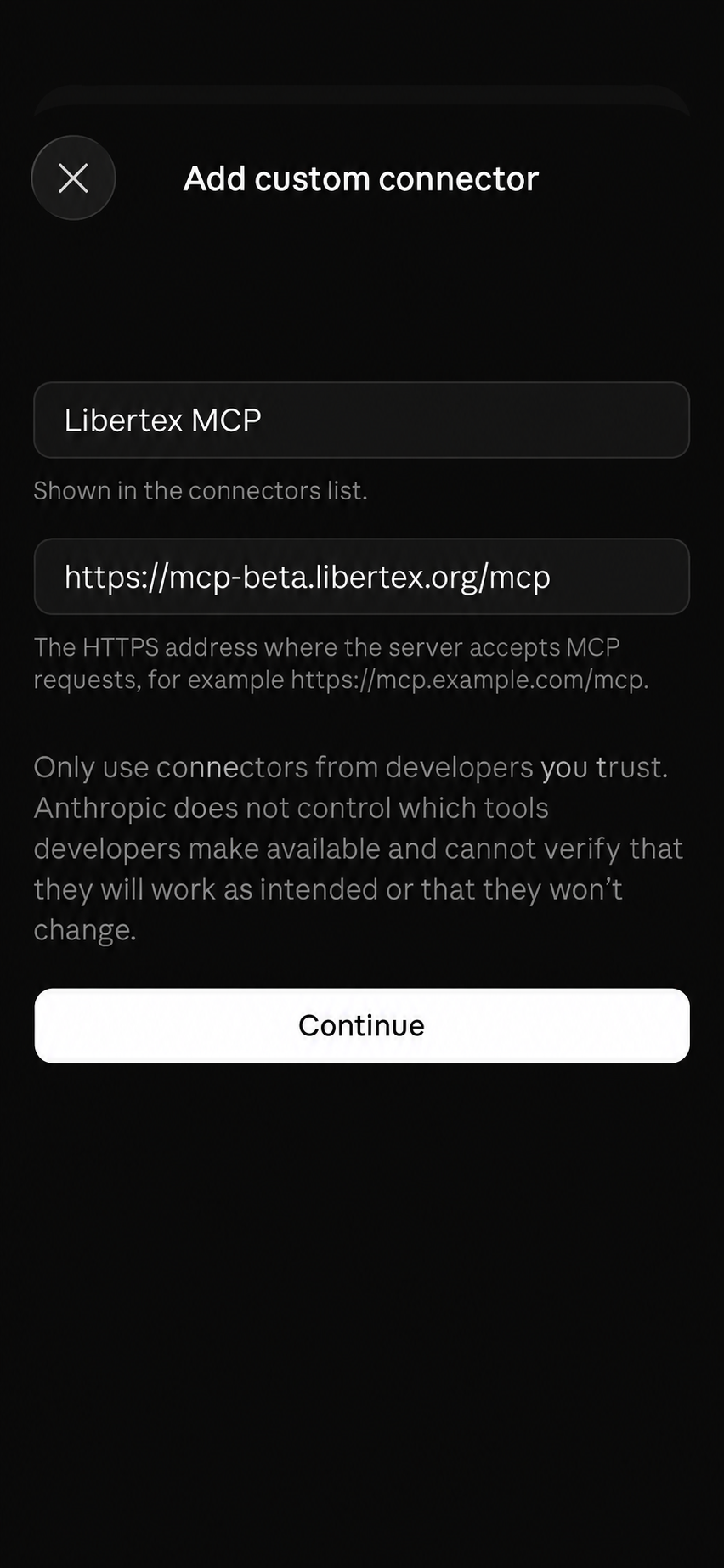
Enter Libertex MCP and the server address → Continue.
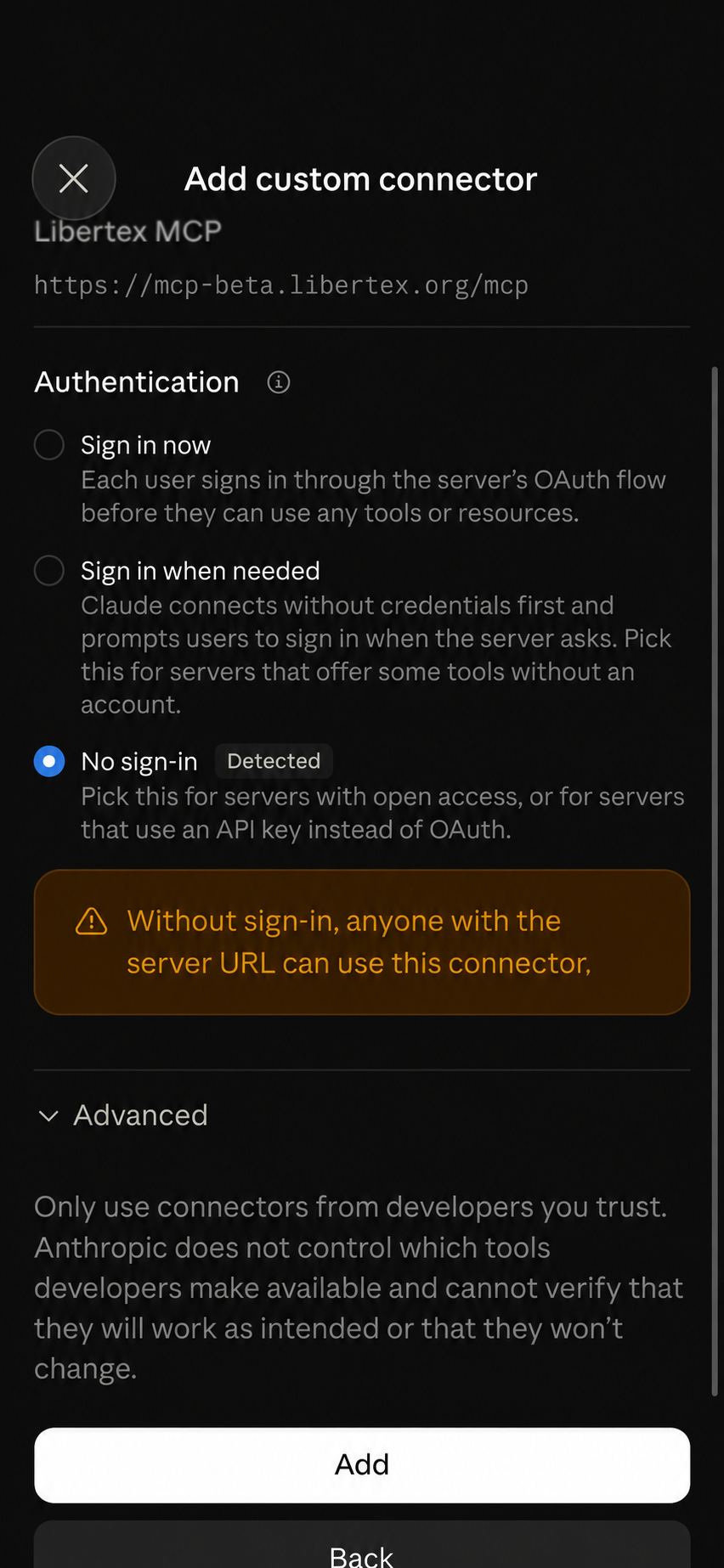
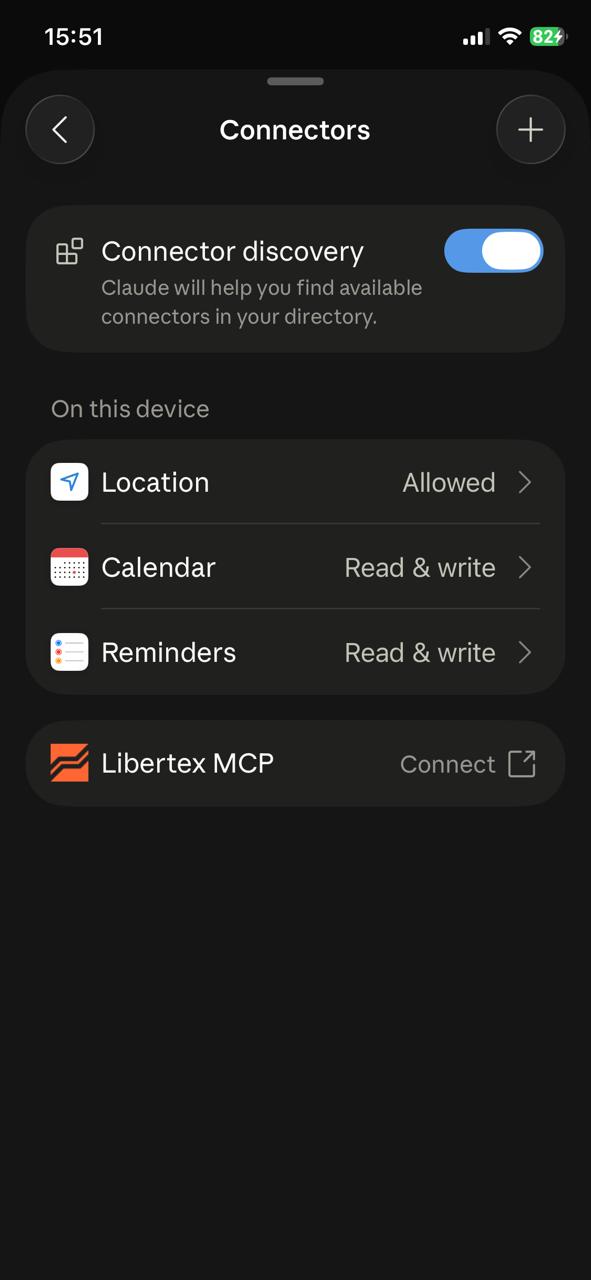
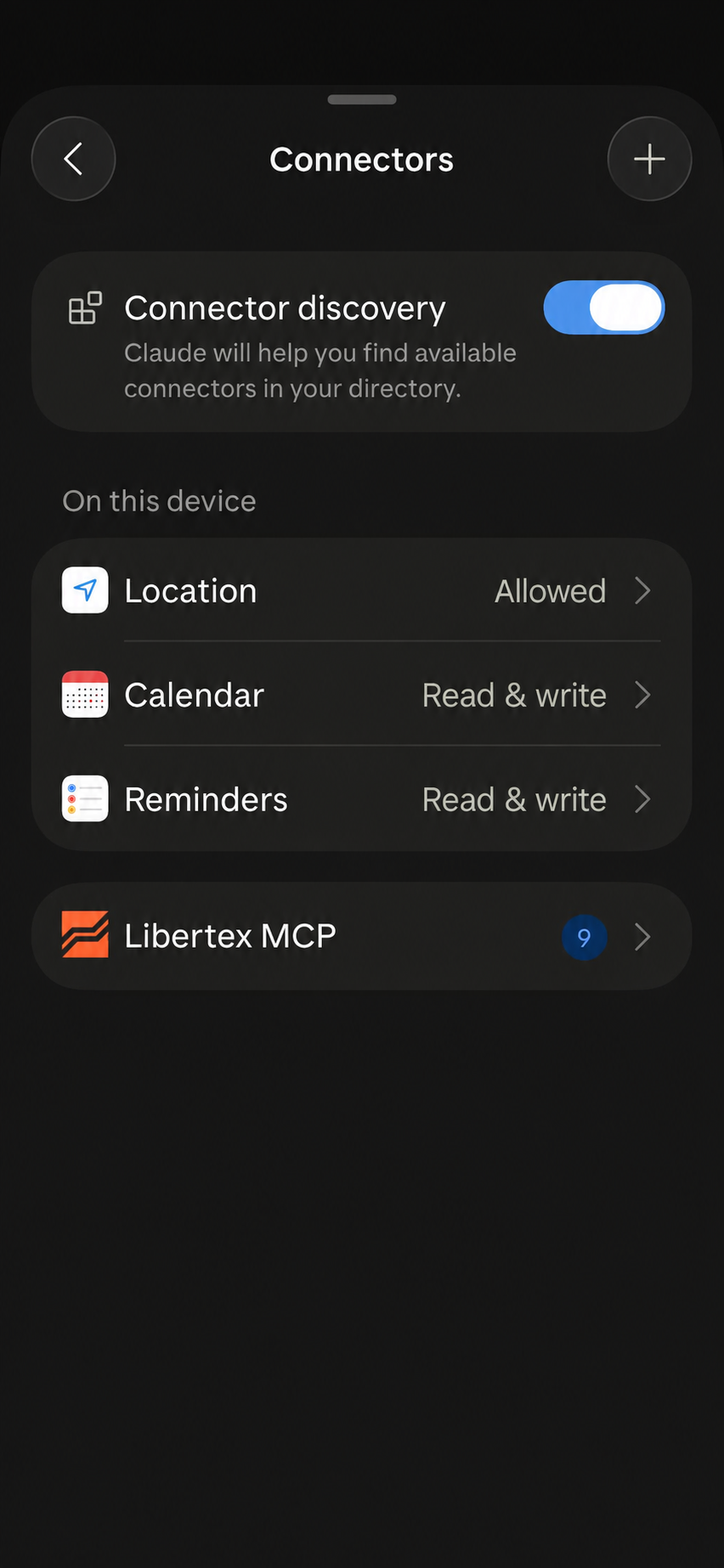
Select No sign-in → Add. Libertex MCP will appear in the connectors list.
If you see Connectnext to Libertex MCP, tap it to complete the connection.
Return to the chat and ask your first question. To be sure, you can ask Claude to prioritise data from the following source throughout this conversation: Libertex MCP.
Step 1 of 8
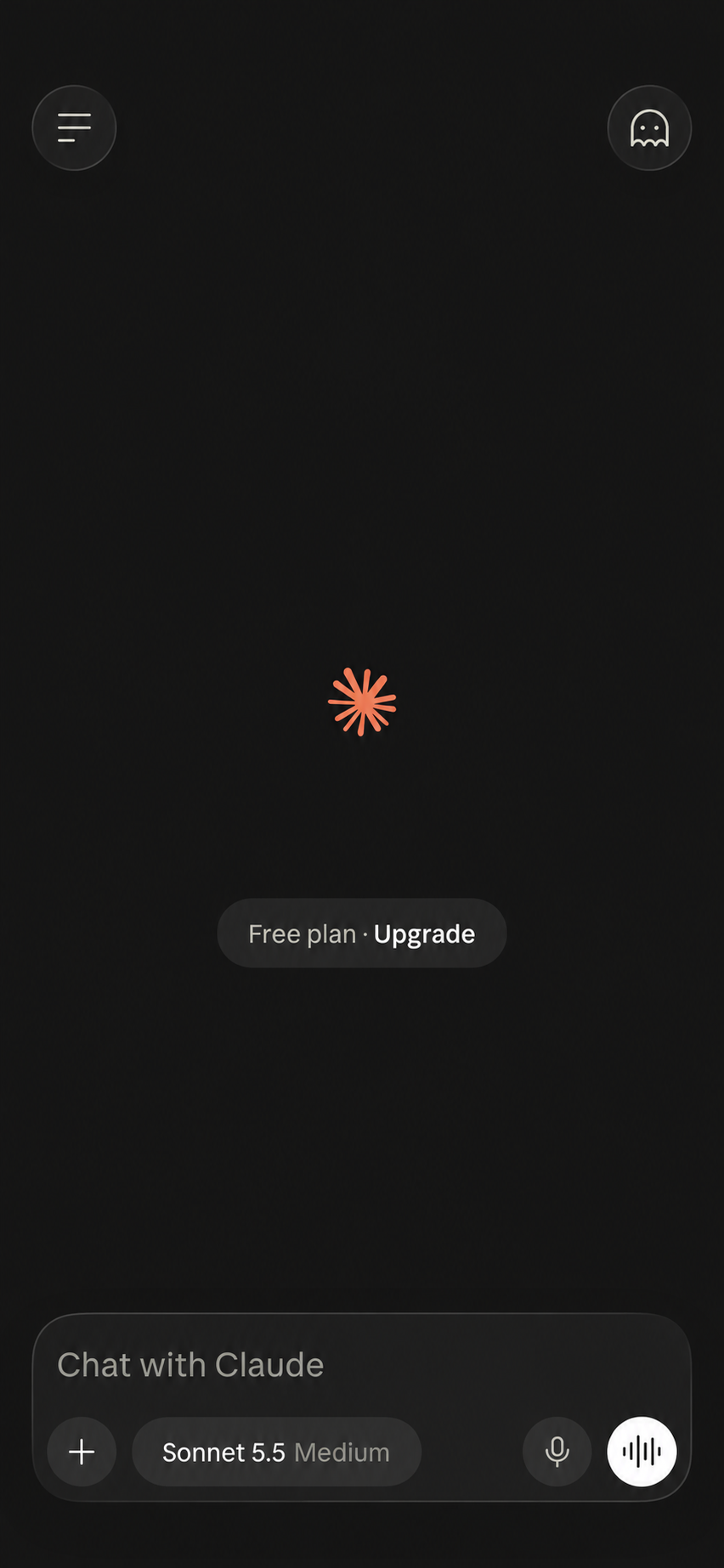
Open Claude and tap “+” in the message field.In the Add to session menu, select Connectors.Tap “+” in the top-right corner of Connectors.Select Add custom connector.The form for adding a connector will open.Enter Libertex MCP and the server address, then click Continue.Select No sign-in and click Add.Libertex MCP appears in the list. Tap Connect if the app asks you to complete the connection.
How to avoid repeated permission requests
In the chat, tap «+» → Connectors → Libertex MCP → All tools → Always allow. Claude will be able to use the current Libertex MCP read-only tools without additional confirmation. If you prefer to approve requests manually, leave Needs approval.
Step 1 of 4
In Connectors, tap Libertex MCP.Open All tools at the top of the tools list.Select Always allow to avoid repeated permission requests.Make sure the checkmark is next to Always allow. Setup is complete.
USE CASES · 01
Quick queries
Simply copy any template below and replace the instrument, period or time zone with your own. The format and depth of the response will depend on the available market data and the assistant's capabilities.
Current price
Check the quote, spread and market status.
TRY ASKING
Show the current EUR/USD price, spread, quote time and whether the market is open.
Performance over a period
See how the instrument's price has changed.
TRY ASKING
Show Tesla's performance over the last month: percentage change, high and low.
Instruments and conditions
Find the instrument you need and check Libertex's trading conditions.
TRY ASKING
Find gold and show its exact symbol, available multipliers, swap and minimum trade amount.
Economic calendar
Prepare for upcoming releases.
TRY ASKING
Use the Libertex calendar. Show tomorrow's events and news in importance category 3 only that could affect the US dollar (USD): date, time, forecast and previous value. Show event times in Istanbul time.
Compare instruments
Assess which instrument looks more attractive for opening a trade.
TRY ASKING
Compare Apple, Microsoft and Nvidia over the last month. Which of these assets is more attractive to buy?
Trade parameters
Get the assistant's view on possible stop-loss and take-profit levels.
TRY ASKING
I want to open a buy trade on BRN at current prices. Where would you suggest placing a stop-loss and take-profit?
Understand the concepts
Learn about the market at your own pace.
TRY ASKING
Explain in simple terms what a multiplier is. Use the gold trading conditions from Libertex MCP and a hypothetical $100 trade.
USE CASES · 02
Scheduled tasks
Ask your AI assistant to run queries automatically at a set time — for example, to send a morning summary or regularly check market conditions using Libertex MCP data.
How does it work?
1
Create a task
Tell the assistant what to do and how often.
2
Check the schedule
The task will appear in Scheduled.
3
Wait for it to run
The AI assistant will run the task on schedule.
4
Receive the result
You will receive a notification if this option is supported and enabled in your settings.
Terms as of 28 October 2026. Availability depends on your account and app version.
Asset price notifications
TRY ASKING
Every weekday, at the start of each hour from 09:00 to 23:00 inclusive (no checks are needed overnight, from 00:00 to 08:59), check the current gold price XAUUSD through Libertex MCP. Use only Libertex quotes.
After every check, send me a notification with the current gold price, even if it has not changed.
Keep the message as short as possible, for example:
XAUUSD 4057.73
Do not include any additional information, headings or explanations.
Create and activate this task.
Calendar events
TRY ASKING
Create an automated task for every weekday at 09:00.
Using the Libertex MCP economic calendar, send me a list of economic events in importance category 3 only that are expected before the end of the current day and could affect EUR/USD.
For each event, include:
• Release time.
• Country and event name.
• Forecast and previous value, if available.
Show times in the Europe/Berlin time zone.
Send a concise text message without tables or complex formatting.
If there are no important events, say so.
Create and activate the task.
Trading signals
TRY ASKING
Create an automated task to monitor gold XAUUSD through Libertex MCP.
Check the market every day, once an hour from 09:00 to 23:00 in the Europe/Berlin time zone.
Use the SMA 50 indicator on the M15 timeframe.
I want notifications for two types of events:
1. A new crossing of the SMA 50 by the gold price, from below to above or from above to below.
2. After such a crossing, the first time the price moves 700 points, or 7.00 dollars per ounce, away from the SMA 50 in the direction of the crossing.
Identify crossings and when the specified distance is reached using the closing prices of 15-minute candles.
Calculate the SMA values yourself from historical candles. If M15 is not directly available, aggregate three consecutive M5 candles into one M15 candle.
Important:
• Do not treat the price's existing position relative to the SMA as a new crossing.
• Track only new events from the moment the task is created.
• Also check for events that occurred between hourly checks.
• Do not send duplicate notifications for the same event.
• If there are no new events, send nothing.
Use a short text notification, for example:
XAUUSD M15: crossed above SMA50 | price 4052.70 | SMA50 4046.72 | deviation +5.98$ | 13:15
For the event where the distance reaches 700 points, also include the price, SMA 50, direction and distance.
Use only Libertex MCP data.
Create and activate the task.
Asset performance report
TRY ASKING
Create an automated task for every weekday at 22:00.
Using Libertex MCP data, send me a brief evening summary of four trading instruments:
1. Gold — XAUUSD.
2. Brent crude oil — BRN.
3. Euro/US dollar — EURUSD.
4. Bitcoin — BTCUSD.
For each instrument, show:
• Current price.
• Rise or fall relative to the previous trading day's close.
• Change in points.
• Percentage change.
Use current quotes and the closing price of the previous completed daily D1 candle from Libertex MCP for the calculation.
Size of one point:
XAUUSD — 0.01
BRN — 0.01
EURUSD — 0.00001
BTCUSD — 0.01
Example format:
Libertex — daily summary
XAUUSD: 4060.47 | up +4370 pts (+1.09%)
BRN: 109.73 | down −48 pts (−0.44%)
EURUSD: 1.11253 | down −483 pts (−0.43%)
BTCUSD: 80664.20 | up +95649 pts (+1.20%)
Include the actual quote timestamps. Flag closed markets or stale quotes.
Send plain text without tables or complex formatting.
Delivery time: 22:00 in the Europe/Madrid time zone.
Create and activate this task.
Overbought and oversold signals
TRY ASKING
Create an automated task to monitor Bitcoin BTCUSD through Libertex MCP.
Every hour, around the clock, including weekends, calculate the 14-period RSI indicator on the hourly H1 chart.
Use historical candles from Libertex MCP and calculate RSI 14 using Wilder's method and the closing prices of completed hourly candles.
I only want two types of notifications:
1. When the RSI first crosses above 70 from below and enters the overbought zone.
2. When the RSI first crosses below 30 from above and enters the oversold zone.
Important:
• Use only closed H1 candles.
• If the RSI is already above 70 or below 30 when the task is created, do not treat this as a new signal.
• Send notifications only for new threshold crossings.
• Do not repeat signals already sent.
• If there is no new signal, send nothing.
Each notification should include:
• Direction of the crossing.
• RSI value before and after the crossing.
• Bitcoin price.
• Signal date and time.
Use one short line of text, for example:
BTCUSD H1: RSI14 above 70 | RSI 72.30 (previously 69.80) | BTC 80500.00 USD | 28.10 11:00
Time zone: Europe/Lisbon.
Create and activate the task.
After creating a task, check its schedule, time zone, connector permissions and notification delivery. Hourly checks are not continuous monitoring: changes between runs may go unnoticed.
STILL HAVE QUESTIONS?
Frequently asked questions
Do I need a paid ChatGPT or Claude subscription?
No. You can connect and use Libertex MCP on both free and paid ChatGPT and Claude plans.
Claude Free includes one custom connector — enough for Libertex MCP. You need a paid plan to connect multiple custom connectors in Claude.
Separate conditions apply to scheduled tasks, as explained in “Scheduled tasks”.
How can I tell whether the assistant is using Libertex data?
In ChatGPT, select Libertex MCP from the “+” menu before sending your question. In Claude, you can ask the assistant to prioritise Libertex MCP data during the conversation. You can see the connector call in the response details.
Do I need to enter my Libertex login and password?
Not in stage one. Select No authentication in ChatGPT and No sign-in in Claude. Access to your personal account is planned for stage two.
What should I do if the connection isn't working?
Check the server address, selected sign-in method and whether the connector is available in the chat. Make sure the tools are not blocked and you haven't reached the assistant's usage limit. Try a simple price query again.
Can I trust every conclusion the assistant makes?
Libertex provides the data, while the AI assistant produces explanations and calculations. It can make mistakes. Check the instrument, period and data timestamp. Scenarios and notifications do not guarantee the outcome of a trade and are not instructions to place one.
How do I disconnect access?
Open Libertex MCP in ChatGPT's plugin settings or Claude's connector settings and select Disconnect. Disconnecting does not automatically delete previous responses from your chats.